Source Connectors
Source connectors allow you to pull documents from various platforms into Vector Data Loader. Each connector handles authentication, browsing, and content extraction for its respective platform.
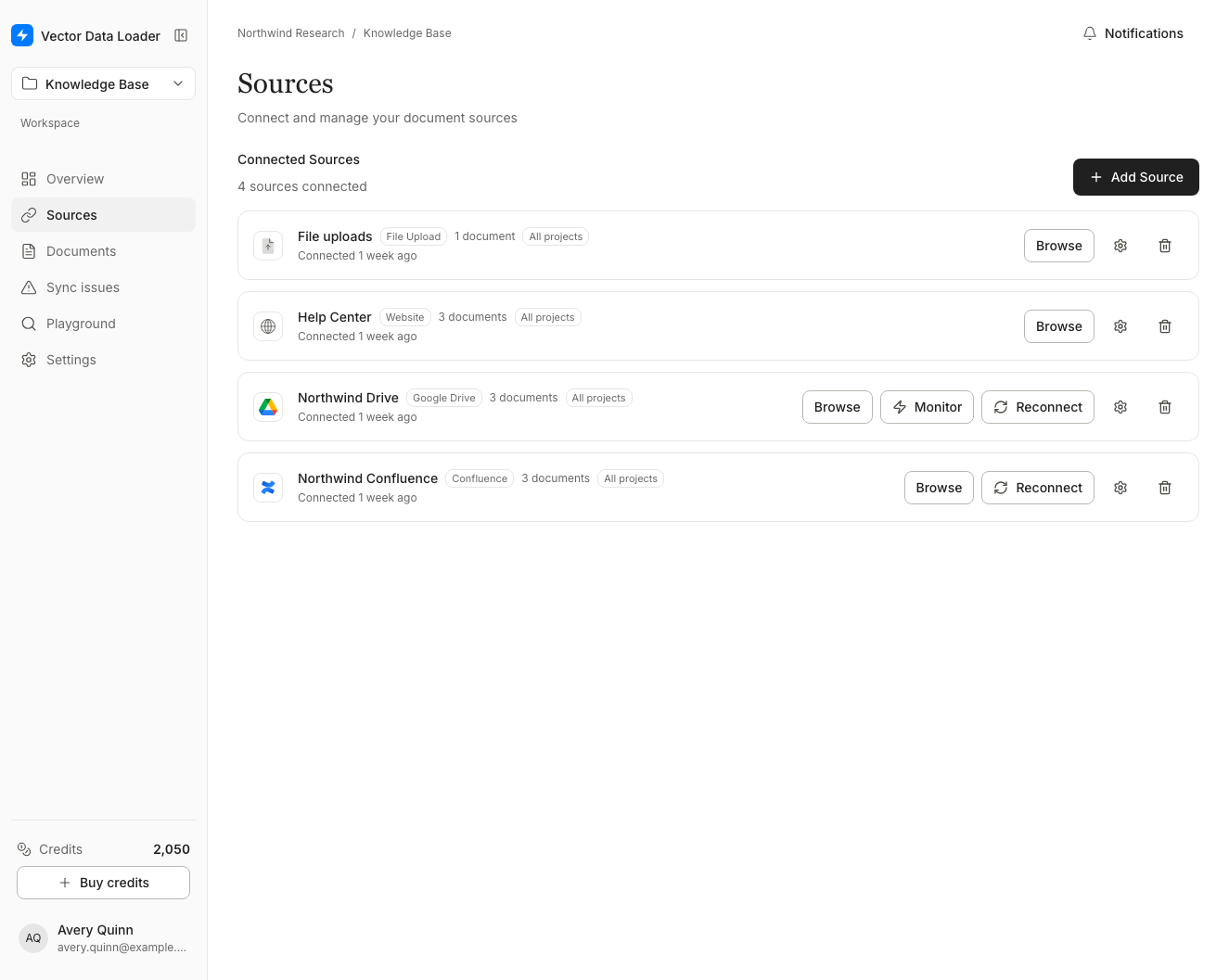
Sources Page Overview
The Sources page is divided into two sections:
- Add a Source (top): Cards for each available connector type
- Connected Sources (bottom): List of your active source connections
Source Visibility
Owners and admins can choose which projects see a connected source. In Connected Sources, select the source's Change source visibility button, then choose:
- All projects: the source is visible in every project.
- A specified project: the source is visible only in the project you pick. Archived projects aren't listed.
Changing a source from All projects to one project warns that it will no longer be visible in the other projects. If the project you're working in has documents synced from the source and the new setting leaves that project out, those documents stay in the project; only the source stops appearing there.
Members can't change a source's visibility.
One Source per Provider
Your organization has one source for each provider: one Google Drive, one S3, one Notion, and so on. It's shared by everyone in the organization, and Source Visibility decides which projects see it. Documents you sync from it belong to the project you sync them into.
- Credential-based providers (S3, Supabase Storage, Notion, Azure Blob Storage, Google Cloud Storage) show Connected in Add Source once your organization has one, and can't be added again. To connect a different account or bucket, an owner or admin disconnects the existing source first (see Disconnecting a Source).
- OAuth providers (Google Drive, Confluence, Jira, Dropbox, GitHub): choosing one that's already connected reconnects the existing source with fresh sign-in tokens. Owners and admins can reconnect.
- Website and Upload always reuse your organization's single source.
- Custom API (where enabled) is the exception: an organization can connect several, each to its own API and project.
- If two people connect the same provider at the same moment, the first one wins and the other sees that the organization already has that source.
Disconnecting a Source
Owners and admins can disconnect a source with the delete button on its card in Connected Sources. Disconnecting removes, for every project the source synced into:
- the source's synced documents
- their embeddings in each project's vector store, so they stop appearing in search and chat
- uploaded files and images extracted from the documents
- the source's folder monitors and queued syncs
It can't be undone. While a document from the source is syncing, disconnecting waits: try again when the sync finishes. If a vector store or storage service fails part way, the source and the documents not yet removed are kept, so you can fix the issue and disconnect again. A very large source may need more than one attempt; each attempt continues where the last stopped.
If a source's sign-in has expired, select Reconnect instead. It keeps the source and its documents.
Available Connectors
| Connector | Description | Auth Method |
|---|---|---|
| Confluence | Sync pages from Atlassian Confluence | OAuth |
| Jira | Sync issues from Jira Cloud projects | OAuth |
| Dropbox | Sync files and Dropbox Paper from Dropbox | OAuth |
| Google Drive | Sync documents from Google Drive | OAuth |
| Website Crawler | Crawl and ingest web pages | None |
| File Upload | Upload files directly | None |
| S3 Storage | Sync from Amazon S3 buckets | API Keys |
| Supabase Storage | Sync from Supabase Storage | API Keys |
| Notion | Sync pages from Notion | OAuth |
| GitHub | Browse and sync repository files | OAuth | | Azure Blob Storage | Browse containers and blob prefixes | Connection string | | Google Cloud Storage | Browse bucket objects | Service account configuration | | Custom API | Import records from your own JSON API (where enabled) | None, API key, bearer, basic or OAuth 2.0 |
Connectors have different browsing and authentication requirements. Folder monitoring is available for Google Drive, S3, Supabase Storage, Dropbox, Azure Blob Storage, and Google Cloud Storage. See Supported Providers.
Azure Blob Storage and Google Cloud Storage
Choose the connector on the Sources page and supply the configuration requested in its dialog. Use an Azure connection string or a Google Cloud service account configuration with access to the selected storage. Browse the container or bucket, select files, and sync them to your current project. The Monitor action can check a selected prefix for new files.
The Supabase Storage source connects to your Supabase project using the URL and service key you supply. It loads files from buckets; Supabase pgvector is a separate vector-store destination.